
Building a Blog with Gatsby - 2
Posted 10 December, 2019
Welcome to the second part of the Building A Blog With Gatsby Series.
In the first section, we built a simple Gatsby site that supported navigation between two pages.
In this section, we are going to create blog posts in .mdx and grab data from each post using GraphQL.
Let's Go! 🚀🚀🚀
MDX
Let's talk about mdx. MDX is a file format that allows you to place React components (JSX) in markdown files. That's simply what it is.
Now we will create a folder called Blog Posts in the root directory of our project. Inside this folder, create 3 files with the extension .mdx. For simplicity sake, I'll call my files first.mdx, second.mdx and third.mdx. Our project's structure should look like this
- cache
- src
- node_modules
- public
- Blog Posts
    - first.mdx
    - second.mdx
    - third.mdx
Plugins
Now out of the box, gatsby doesn't support mdx. We will have to install a plugin to use mdx. Plugins are an important part of Gatsby and they give gatsby extra strength to do more things.
The plugin we will use is gatsby-plugin-mdx.
gatsby-plugin-mdx allows us to use mdx files in our Gatsby project.
To install gatsby-plugin-mdx with npm, run this in your terminal:
npm install --save gatsby-plugin-mdx @mdx-js/mdx @mdx-js/reactTo install with yarn,
yarn add gatsby-plugin-mdx @mdx-js/mdx @mdx-js/reactNow that you have installed the plugin, we have to add the plugin to our gatsby project. To do that, open the gatsby-config.js file. The gatsby-config file is where we add all our gatsby plugins and metadata. If you initialised your project using the method I showed in the last article, there should be a plugins property whose value is an array of plugins. To add our plugin, append the following object to the array.
{
    resolve: `gatsby-plugin-mdx`,
      options: {
        defaultLayouts: {
          default: require.resolve(`./src/components/layout.js`),
        }
      }
}
As you can see the value of the resolve property is the name of the plugin. We also have an options property which allows us to set the layout of our .mdx files.
The layout we will be using is the same layout component we used for our index page, so the body of our markdown files will be in between the header and footer.
Adding our blog posts to Gatsby's data layer
Now we have to make the data in our .mdx files accessible to Gatsby. Gatsby uses GraphQL to query data but GraphQL can't access our mdx files to query mdx-specific data by default. We have to expose the mdx files to Gatsby's data layer. To do that, we have to use the gatsby-source-filesystem plugin.
If you initialised your project via the method we used in the last article, gatsby-source-filesystem should be already installed. Otherwise, you can install it via:
npm install --save gatsby-source-filesystemOnce you have installed it, open the gatsby-config file and append the following object to the plugins array.
{
      resolve: "gatsby-source-filesystem",
      options: {
        name: "Blog Posts",
        path: `${__dirname}/Blog Posts`
      }
}
In the options, we can specify a name for what data we want to expose and the path to the data. You can name it whatever you like and the path to our blog posts is Blog Posts in the root directory.
Once you have done that, restart your server by killing the previous one and running npm run develop again.
Writing our markdown
Before we start grabbing data from our markdown files, we need to put content in them.
In markdown, we have something called Frontmatter which allows you to add something similar to metadata for your markdown file. You can add the title of the file, date it was written, Author, Tags and so on.
To add stuff to our frontmatter in first.mdx:
---
title: First Blog Post
Author: Faruq
Topic: Gatsby
---
We enclose whatever we want to place in our frontmatter between (---). This tells mdx that whatever is between that (---) is frontmatter.
As you can see, our title is First Blog Post, author is Faruq and Topic is Gatsby.
We also going to add some lorem ipsum text to fill the body
---
title: First Blog Post
Author: Faruq
Topic: Gatsby
---

This is my first blog post.

Lorem ipsum dolor sit amet, consectetur adipiscing elit. Duis tristique ligula ac sollicitudin egestas.
Curabitur molestie tincidunt nunc. Cras in molestie neque, quis tincidunt libero.
Curabitur quis metus vel purus molestie finibus. Vivamus ut viverra dolor.
Morbi mattis magna sed lacus facilisis, sed aliquam leo gravida.
Cras sagittis ultricies purus sit amet tempus. Integer imperdiet non tellus in gravida.
Now, fill the other two mdx files with the similar content.
Once that's done, we'll start querying data.
Querying Data with GraphQL
To query data in Gatsby, we are provided with GraphiQL, an in-browser IDE, that allows you to explore your site's data and schema.
To access your GraphiQL, make sure your server is running and visit this link You should be taken to a page like this:
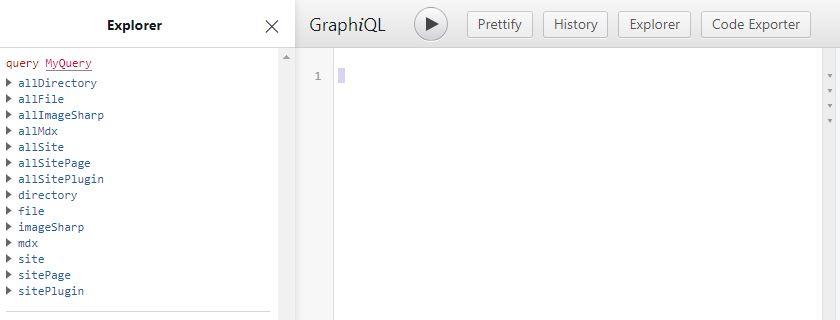
This is where we can make different queries and see the results instantly before using them in our code.
Making queries is easy though it might take some time to get used to.
First, we will query for all our MDX files. We will also use the data in the frontmatter of each of them.
Simply, type this in the GraphiQL
{
  allMdx {
    nodes {
      frontmatter {
        Author
        Topic
        title
      }
    }
  }
}
As you can see, we queried for all the MDX files exposed to the data layer using allMdx. We then queried for the nodes which gives us an array of all mdx files but only the specific data we requested for which, in this case, is frontmatter. Under the frontmatter, we queried for the Author, Topic and Title.
You should a result like this
{
  "data": {
    "allMdx": {
      "nodes": [
        {
          "frontmatter": {
            "Author": "Faruq",
            "Topic": "Gatsby",
            "title": "First Blog Post"
          }
        },
        {
          "frontmatter": {
            "Author": "Author 2",
            "Topic": "React",
            "title": "Second Blog Post"
          }
        },
        {
          "frontmatter": {
            "Author": "Author 3",
            "Topic": "Web Development",
            "title": "Third Blog Post"
          }
        }
      ]
    }
  }
}
As you can see, graphql pulled the Author, Topic and Title of all our MDX files.
Now we are going to grab this data into our code and use it to generate post previews in the next section of this series.
Stay Tuned.
If you have any questions, you can reach out to me on Twitter.