
Building a Blog with Gatsby - 1
Posted 30 November, 2019
Hey Guys!
Ever wanted to build a blog where you can host all your articles without fear of losing them due to third-party problems?
Are you moderately skilled in React?
This article is the one for you
I will work you through the steps of building a very simple blog with a famous static site generator - Gatsby
You can find the finished blog here.
What's a Static Site Generator?
According to this article, a static site generator takes your site content, applies it to templates, and generates a structure of purely static HTML files ready to be delivered to visitors.
Simply put, a static site generator generates static sites based on the developer's input.
We have a lot of static site generators such as Gatsby, Hugo, Gridsome, Jekyll and so on. In this article, we are going to focus on Gatsby.
Why Gatsby?
I haven't used other static site generators asides Gatsby but my experience with Gatsby has been incredible. Gatsby allows you to build blazing fast sites with react and the plugins library is packed. There's a plugin for almost everything be it optimizing images or rendering MDX files on your site.
Fun fact: My blog (KatanaBlog - this blog) was built with Gatsby 😁
Getting into the code
The link to the repo for the code used in this article can be found here in case you want to check it out.
Let's get started
Note: You should have Node.js installed so you can use npm
Once you have npm installed
Install the Gatsby CLI
npm install -g gatsby-cliYou can now create a new gatsby project using:
gatsby new {project name}After the download, open the project's directory and run gatsby develop or npm run develop
cd {project name}
npm run develop
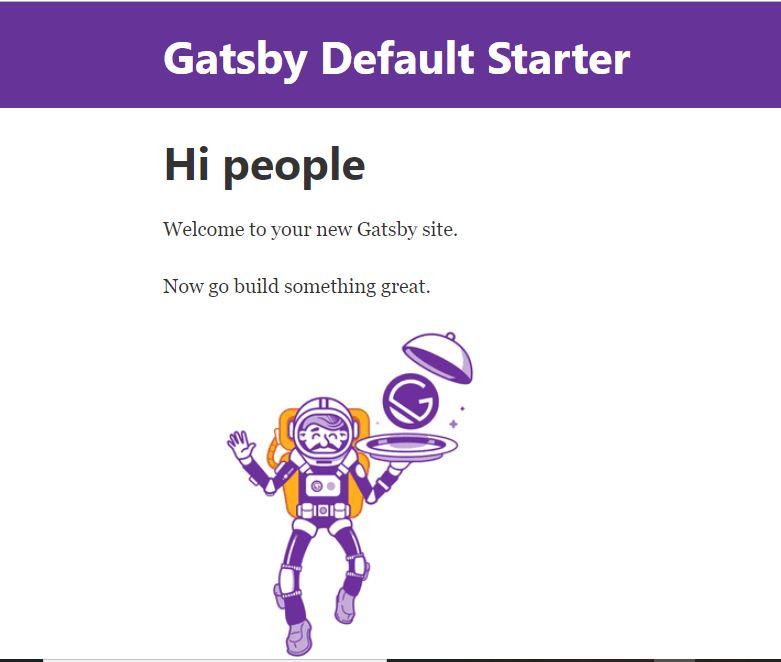
Now you should have your gatsby project running at localhost:8000
When you open your localhost:8000, you should have something like this
And your project structure should look something like this
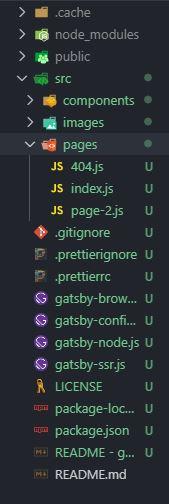
Most of our code (components, pages, templates etc) is going to be in the src folder
Explanation of the project structure
The folder we'll use most of the time is the src folder, inside the src folder we have the pages folder.
The pages folder contains all our pages with the extension .js
The components folder contains all our components such as Tags for blog posts, Footer, Header and so on.
Hopping into the layout.js file
In the components folder, you should find a layout.js file. This file contains the layout for every page it's applied on. If you study the component, you'll find that it contains a Header and Div element wrapped in a React fragment. The div element contains the main and footer element.
return (
    <>
      <Header siteTitle={data.site.siteMetadata.title} />
      <div
        style={{
          margin: `0 auto`,
          maxWidth: 960,
          padding: `0px 1.0875rem 1.45rem`,
          paddingTop: 0,
        }}
      >
        <main>{children}</main>
        <footer>
          © {new Date().getFullYear()}, Built with
          {` `}
          <a href="https://www.gatsbyjs.org">Gatsby</a>
        </footer>
      </div>
    </>
  )
By the way, this is a react fragment
<>    //beginning of react fragment
    //...component code here
</>  //end of react fragment
React fragments prevent unnecessary use of divs in our components.
So if we import the layout.js component in a file (for example a page), we can reuse the header and footer by simply placing the necessary contents for that page in between the layout component's opening and closing tags. When you look at the layout.js code, you can see that whatever content we are going to put in between the layout component's opening and closing tags is represented as children which was destructured from the props object.
We are going to leave the layout.js file intact because it takes care of some styling which I don't want to focus on in this tutorial.
Let's move to the index.js file in the pages folder !
Open the index.js file in the pages folder. For this tutorial we will remove everything in between the layout component except the SEO component. Once that is done, we should have something like this
const IndexPage = () => (
  <Layout>
    <SEO title="Home" />

  </Layout>
)
Once you save your changes in the index.js file, the index page should only contain the header and footer.
For now, we will add these between the layout component
const IndexPage = () => (
  <Layout>
    <SEO title="Home" />
    <h1>Welcome to my Blog</h1>
    <p>I welcome you</p>
    <p>Welcome once again!😉</p>

  </Layout>
)
You should see the changes on the page once you save.
Now we are going to Link to another page.
Fortunately, we already have a page-2.js that Gatsby has given us.
To link to another page in Gatsby, we use the Link component which we have to import from Gatsby so add this to the top of the index.js (it might have already been imported for you, if that's the case you don't need to import it again)
import { Link } from "gatsby";Now we will use the Link component inside the layout component, we call the link component like every other component and give it a to attribute (which is very similar to an href attribute in an anchor tag). The value of the to attribute is a forward slash ( / ) followed by the name of the page we want to link to. In this case, that name will be "page-2" or if you created a page yourself, the name of that page.
So now, we should have
const IndexPage = () => (
  <Layout>
    <SEO title="Home" />
    <h1>Welcome to my Blog</h1>
    <p>I welcome you</p>
    <p>Welcome once again!😉</p>
    <Link to = "/page-2">Go to page 2</Link>
  </Layout>
)
Now, you'll notice that if you click the link, you'll be taken to page 2 or whatever page you set the link to direct to.
That's it for this section of Building A Blog With Gatsby.
You should take some time to look through the code of the pages, it's not really necessary but it will allow you to learn faster.
In the next section, we'll deal with writing blog posts using markdown (with the extension .mdx which allows us to use React components in markdown) and we will create post previews.
The next section will also contain some GraphQL.
Stay Tuned!